
Unless you’ve masterfully been dipping and dodging digital rocks for the last week, then you’re aware that there’s been a new update to the Apple iOS and this time, they’re shaking things up. The opening bugs from the new system have been zapped, and the risk of owning an expensive brick have diminished exponentially so I think it’s safe for everyone to get on the train. As of today, almost a third of prior users have done the damn thing and upgraded their devices. However, before you climb aboard – it’s helpful to understand what changes you’re getting yourself into.
As a somewhat recent iPhone convert (RIP my beautiful Android and my addition to all things LG), there are some features that I feel I’m still getting used to on the iPhone; other times, it’s as if Apple is taking more and more from Camp Android, and the latest update is absolutely no exception. With the iOS 10 update there’s a handful of both ergonomic changes and functional changes, not to mention a new color to add to your collection. If you have an iPhone6 or earlier, you’ll unfortunately be missing out on a few of the clutch components that iOS 10 has to offer – primarily anything to do with 3D sensors and touch screen, especially as more companies jump in on the fun. An inconvenient technological ploy to get you to upgrade? Potentially. But – will it work? Definitely.
There’s No Place Like Home
Of all the changes to get used to, using the Home Button to unlock the phone might be the largest. For the last few years, we’ve all been swiping like it’s hot, so for me – I have a good amount of unlearning to do. This is the most intuitive changes that Apple has made to the iPhone in a few iterations, but it’s also proving to be the most difficult to get over.

Lift Up to Light Up
No longer do we have to live in an age of button pressing on your phone to catch up on your notifications or the time. Now, all you have to do is simply raise your phone to wake it up. For those of you that are weary of someone else picking up your phone and being able to read the notifications, don’t you fret – there are ways to edit what’s seen.
Swipe to Snap
Seems like Apple finally realized what everyone wants immediately when they reach for their phone, the time, the notifications – and a way to take a quick pic.  Thank goodness one of the two swipe screens is for the Camera. The other side screen is your widgets – instead of being a pull down screen from the top, they’re now a lot more accessible.
Let Bedtime Put You to Sleep
Maybe it’s a symptom of not wanting to completely be an adult yet, but the idea of a ‘bedtime’ is terrifying – and even more so for my fiance whenever I mention having one. Thanks to the update from Apple, now I can actually set a bedtime reminder – just in case I’m busy marathoning Mr. Robot and Penny Dreadful and think I’ll have no problem going on 3 hours of sleep the next day (note to self, you’re 31 going on 32, not 23 going on 13…)
Make Messages Personal
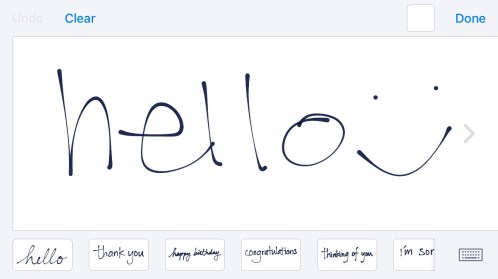
For all those times you’d rather send a handwritten something than a barrage of bitcode, this update is for you. Next time you’re in your messages, turn the screen into landscape mode to put your words into your own handwriting. If you’re feeling funny – add a GIF straight from Bing’s search schematics; if you’re feeling flirty – try sending a message with invisible ink.
These are just my five favorite updates, but there are plenty more: edit your live photos, delete root applications like Stocks, utilize the new and improved search tool, play around with Siri now that she’s been linked up to more applications, transcribe voicemails, collaborate on notes, adjust the brightness on the flashlight or use ‘Moments’ to create little slideshows of your recent memories.
What are your favorite updates inside the new iOS? Let me know in the comments below!


 One of my favorite things about road trips is that they can take you wherever your little heart desires – want to head to the beach and cruise the coast? Do it! Or how about a detour through the desert or a romp near the river? A road trip is the quintessential choose your own adventure experience and you’re the captain. Sometimes, it just takes a wish and a will to find something novel – but if you’d like a little assistance, download



 wrap up a weekend, pay your respects to a group of friends or simply embarrass just one on their birthday; and let me tell you, there are a ridiculous amount of applications that simply aren’t as seamless. Just off the top of my head, there’s


 The Bouncy Kitty
You must be logged in to post a comment.