[Tech Tuesday] 5 Tips and Tricks for the iPhone 5S

Though I wouldn’t say I have a hard time with being wrong, I certainly enjoy being right a lot more frequently – and when it comes to technology, I’ve always felt that I’ve had a keen eye for the latest and greatest toys and gadgets.  For the last five years in Los Angeles, I’ve bounced between LG and HTC Smart Phones – but have consistently run into problems with the OS restarting, and that’s in addition to my contacts being deleted (on multiple occasions).  For the last two years, I’ve been a had an HTC Rezound and what I once found novel, amazing and innovative was suddenly slow, redundant and poorly integrated – especially when compared to my daily use on my former deactivated iPhone 4s that I was using as a Wirelessly enabled PDA.

20140225-155039.jpg

The fact of the matter is that I’m a heavy duty phone user with quick paws and a curious mind, and my Droid simply wasn’t cutting it anymore for my everyday inquiries. For all the reasons and times that I defended my Android in all of it’s customizable glory, the truth is that in the five years that I’ve owned a smart phone I’ve never once decided to root my Droid; in retrospect, I did jailbreak an iPhone or two.  So, when I had the chance to upgrade my phone plan early with Verizon two weeks ago I more than jumped at the chance for something different.  Since then, I’ve managed to migrate from an avid Android activist to a full on iPhone enthusiast – equipped with simple screen shots, emoticons and voice commands.

To make the transition as smooth as possible,  I’ve been scavenging the internet in search of the latest, greatest and most amazing tips and tricks for the 5s and, admittedly, I’ve had a blast doing it.  Without further ado, here are a few of my favorite hacks!

5 Tricks + Tips for the iPhone 5s

      1. Camera: Burst Mode 

There are 3 ways to enter ‘Burst Mode’ – press and hold the shutter key, or either of the volume keys on your phone for a succession of snaps,saved as a burst.  The phone will pick the best of the group to display, but you have to option of browsing through all of them.

      2. Slide iMessages Left for Time-Stamp

For a cleaner look, the time-stamp was eliminated from the standard text message view – however, if you want to reveal what time you sent your last message, simply slide the screen to the left.

      3. Enable Airdrop for Easy File Sharing

When you get to your home screen, slide up for the ‘Toggle’ bar and second from bottom you’ll see a line for ‘Airdrop’ –  you can enable this for your contacts, or anyone in the room with an Apple device.  As a bonus, Airdrop works exceptionally well with the Apple TV device – presenting your iPhone screen on whatever device the ATV is plugged in to.

      4. Customized Alert Vibrations

Not that this was in any way necessary (IMO, at least), but with iOS7 we now have the ability to set customized text, email and alert vibrations – that way, even if your phone’s on silent you’ll be aware of important calls, reminders and meetings.   The phone comes with some standard ones – like ‘Heartbeat’ and ‘S.O.S.’, and below this you have the ability to create your own:  SETTINGS > SOUNDS | Select the Alert | VIBRATION | CREATE NEW VIBRATION

      5. Add an Emoji Keyboard

Okay, granted this isn’t anything novel for past iPhone users – but as an Android user, I was completely amped to finally use some emoticons on Twitter, Instagram and in my text messages.  As with all things iPhone, additional keyboards are easy to add.  Go to the App Store to download something that strikes your fancy, then head to: SETTINGS > GENERAL >  KEYBOARD > KEYBOARDS > ADD NEW KEYBOARD

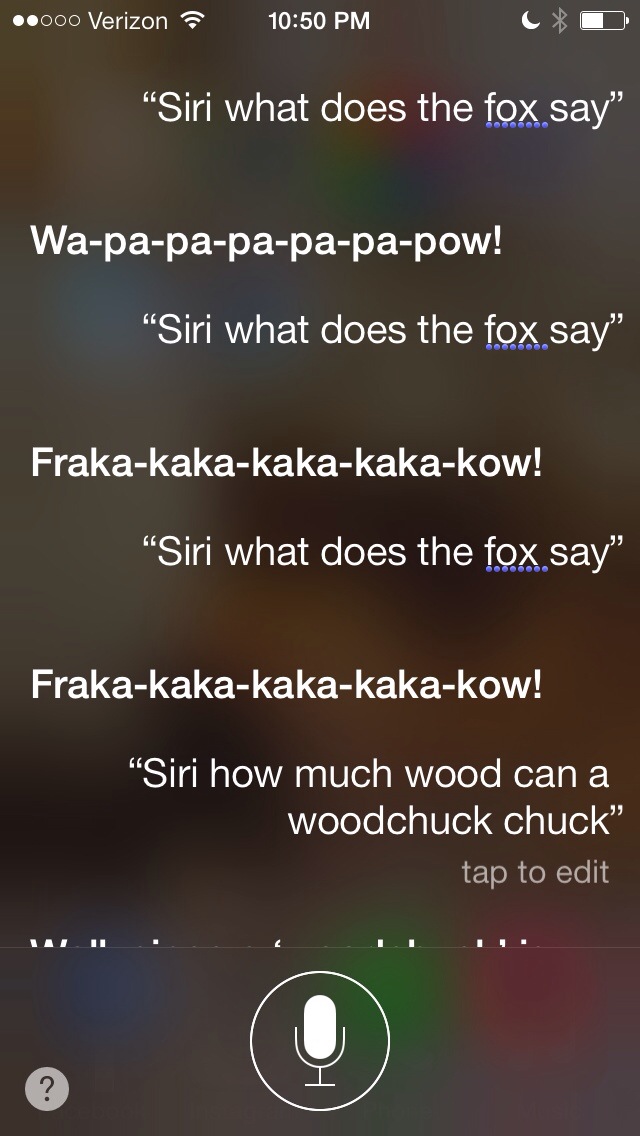
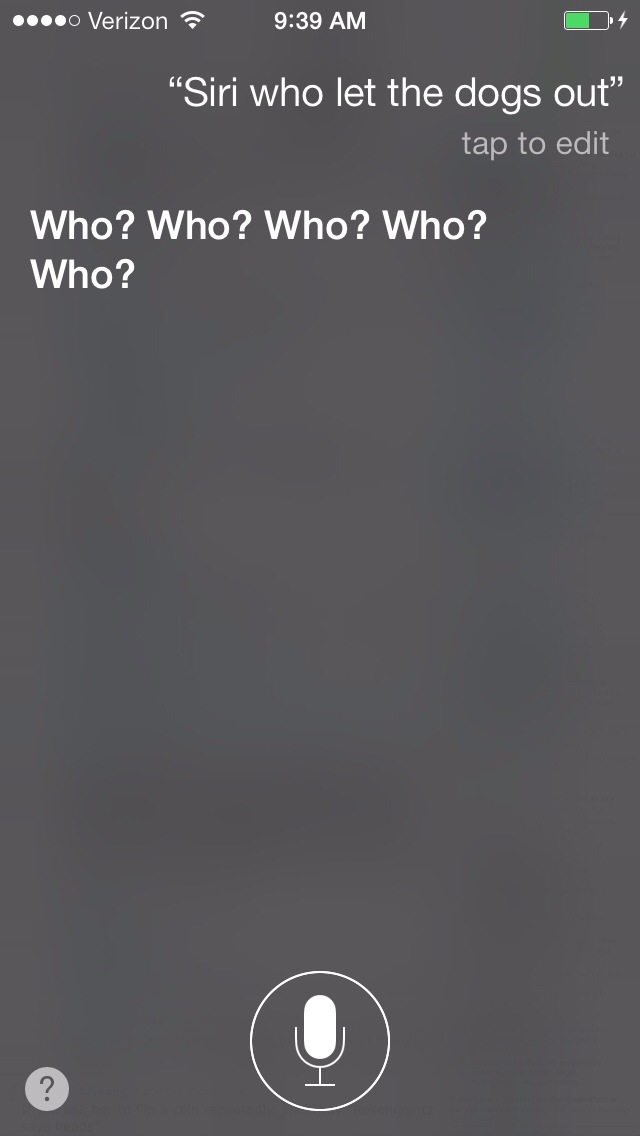
Last, but not least – I leave you with my new favorite late night habit: Fun with Siri.    Back in the day, when Apple updated their Desktop OS – they’d embed bits of code for the heavy duty computer users to discover that came to be known as ‘Easter Eggs‘ In case you’re not aware, Apple Easter Eggs are to adults what Candy Easter Eggs are to little kids – fun, exciting, and hidden in the most amusing locations.  Unfortunately for tried and true Apple computer fanatics like myself, Steve Jobs did away with the Easter Egg back with OS 9. Thankfully, there are still engineers out in Cupertino that held onto the creative, human aspect of the job and it shows in the most amusing of ways – for example, SIRI.  When I was scavenging the interwebs in search of new and awesome things to do with my 5s, I stumbled upon an amazing Reddit thread with some amazing questions for the

20140225-151534.jpg

20140225-151555.jpg

[The Audiofiles] ‘Listn’ Up, Music Lovers – There’s A New App For You

One of the many amazing benefits to growing up in an excessively digital age, is our constant accessibility to music.  Whether it’s by our choice or not, it feels like our brains are being bombarded by beats on the daily: it’s the hold music on your company conference calls, the muzack playing in the elevators between the floors at the doctors office, your iPod at the gym, the SiriusXM radio in your car, the Spotify app you hooked up to your Facebook account or the occasional stop off on Soundcloud.  Believe you me – I’m not complaining by any means; in fact, if possible I would have an ongoing soundtrack to my life and I would always be in charge of the volume.

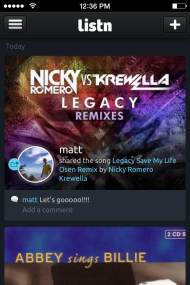
Listn’s Dashboard

Throughout the years of being expertly plugged into the interwebs, I’ve developed a network of sites that I use to feed my thirst for tunage.  Back in it’s inception, I dove right into Soundrop.fm – which is a great social resource for new music; slowly but surely, all that came from that was a reintegration into Spotify.   I currently dabble in Hypem and Soundcloud when I’m on the prowl for something new, Spotify when I’m curious what my friends are groovin’ to and then the occasional YouTube video for some visual treats.    The only downside to having multiple music platforms is that there hasn’t been a quick or easy way to streamline all of the sites into one. Thankfully, with the growing popularity of websites like Klout that aggregate your social media presence it only makes sense that some group of music loving techies thought to do the same with all of the streaming media around the web.  So, world – meet your new best friend, Listn: a social way to aggregate your audio and find out about the latest and greatest in the music scene.

photoTrust me when I say  – you don’t want to know how many tabs I have open in my browser right now and about a third of them are devoted to the pursuit of music. There are a host of stites that Listn uses to manifest user data, and right now that’s iTunes, Spotify, Hypem, Youtube and Soundcloud. The latest and greatest to addition is Rdio – a website that lets you stream high quality audio for a minimal fee: after 6 months of free listening, $4.99 a month or $9.99 for unlimited listening capabilities. If you’re like me, you’re thinking- WINNER, WINNER, CHICKEN DINNER – and if you’re not, we might want to rethink the future of our relationship.

The brainchild of Montreal’s MFive Labs, Listn is currently being funded through Kickstarter – where creative endeavors (like Apps, Movies, etc) go for funding.  As of right now, they have raised approximately $500,000 and have released the application for free!   Right now the application is only available for the iPhone (le sighso if you’ve been eating your Apple a day, you’re in luck.  As with most everything in life, good apps come in due time for Android.  The iPhones have an essentially seamless interaction between their applications that Android simply doesn’t have yet,  so hopefully there will be a a version that can work with the upcoming Android KitKat 4.4 OS installation in January (fingers crossed).

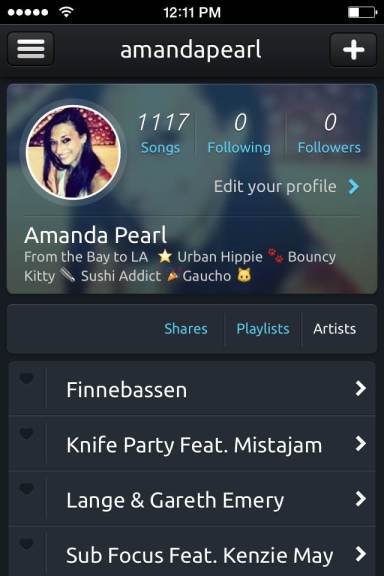
Listn’s Userpage


Weekly Dose of Wisdom

For as long as I can remember, I’ve had an knack for throwing images and quotes together in the perfect symbiosis.  Every so often when I go  back through old journals and tumblr accounts, it becomes increasingly obvious to me how much they not only move me, but my audience.  Visual beauty paired with moving words – let’s be honest, there’s nothing quite like it! I don’t know why I didn’t get the idea sooner but over the past few weeks  I’ve been developing my own visual quotes! For editing purposes, I’ve been turning to Mextures on the iPhone and Pixlr Express on the Android; then for the kicker, I add text using an awesome iPhone app called ‘Over’ – it’s pure genius and I highly suggest you guys get them!  With so many amazing fonts and filters to choose from, it’s hard not to get completely sucked in! These are just a few that I’ve made this week – and I’m looking forward to making more and turning this into a weekly segment; wee!


Quotable: Love Should Make You Fly

madewithover

madewithover (2)


Tech Tuesdays: Comparing Apples to Ice Cream

Technology and I go way, way back.

From a young age, I was immersed in and surrounded by some of the newest, geekiest tech toys available. My mom would lean towards function over form while my dad was a fan of having the latest and greatest of everything – from new Movie formats, an upgraded OS, the latest in cordless Home Phone and cell phone technology.

I grew up on the Mac II, playing around with MineSweeper, Creative Writer, KidPix, Pipe Dreams and Lemmings when most kids were playing with dolls.At the age of 7, my dad brought home our first – and only – Laser Disc player. In middle school, I was lucky enough to get an iMac. I got my first mp3 player soon after and essentially played hotpotato with various iPods into my college life.  When the iMac was scrapped for parts, I inherited a Mac Sawtooth G4 and after that the shiny new iMac that I have today but I couldn’t fully escape the grasp of the PC.  In college, I honed in on my love of numbers, data and code and eventually switched my major to Statistical Science.  My new coursework relied heavily on applications that were PC only, so eventually I became proficient in both operating systems.

I got my first cell phone before I got my first car; it was an ugly brick of a phone but it did the trick.  It maybe had a game on it, six obnoxious stock ringtones and limited, if any, texting capabilities.  When I was 17 I upgraded to a smaller brick – and slowly, but surely I started climbing that magical cell phone ladder.  In college, I upgraded to an LG Flip Phone that changed color on the front panel; it might not seem so cool now, but back then it was the business. I had a Chocolate until it fell apart on me, literally. I thought about getting an iPhone but I have to be honest – at the time it seemed like a glorified, overpriced iPhone and I wanted nothing to do with it. So when HTC started rolling out Android phones, I was thrilled.  I started with an Incredible, then the Incredible 2 and finally – my precious Rezound. One of the best things about this model is the sleek GUI and design interface.

A few days ago, the Ice Cream Sandwich update was pushed through to my phone; I was stoked! It was honestly like having a brand new phone to play around with.  Here are some of the changes that I noticed, and a helpful little trick.

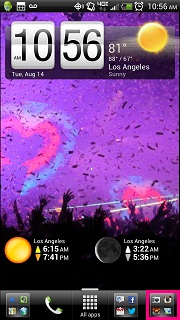
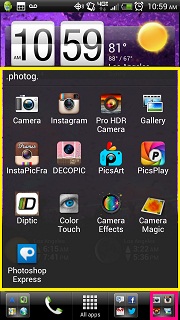
 The best aspect of the Ice Cream update is the locked dock at the bottom of the screen.  Before the update, I had my favorite applications on the lock menu and the rest posted all over the home screen for easy reference. The new dock not only lets you keep those precious applications at your fingertips, but you can choose between having one or many in one location by simply dragging and dropping one over the other.

Trick: To take screen shots on older HTC models, you either had do download and pay for a 3rd party application or go through the painstaking task of rooting your Droid.  One of the things I absolutely about the Rezound is being able to take screen shots on the fly.  If you didn’t know you had this feature and wanted to test it out, follow these super simple steps:

  1. Go to the main screen of the Rezound
  2. Press gently on the Power Button, holding it halfway down
  3. Tap the Home Icon

Your screen should immediately flash to white and a text box saying “Screenshot saved to Camera shots” will pop up on the bottom of the screen.

Tip:

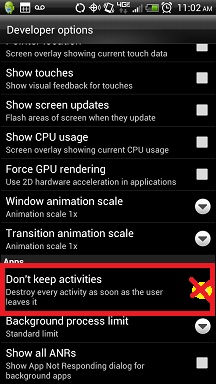
Toggling this button may seem like a good idea:

I’ll save battery life! My applications will boot faster! WRONG.

I’ve had issues with previous phones and what happened seemed like a horrible flashback: every time I closed out of an application the HTC Menu would reboot.  Being the proud owner of now several HTC phones, I thought I was starting an infinite Boot Loop.

Thank goodness I wasn’t, but I got scared for a second! I’d much rather use this Advanced Task Killer application and save myself the heart attacks.